HyperLink, a free VST3 that links your DAW to the 4ms MetaModule
HyperLink is a plug-in for people with a 4ms MetaModule. Connect the module to your computer with one USB cable and put HyperLink on a MIDI track. The patch that plays on the module shows up on your screen with its real panels, every knob and every cable. Turn a knob there and the module follows, while your DAW records the move as automation and the MIDI track plays the patch.
It also finds things to play. Before you click, you see whether a patch or a module runs on your MetaModule as it is, or which plugin it still needs, and that plugin installs over USB with one click. One thing to know up front: the sound does not travel over USB. Patch the MetaModule's outputs into your audio interface, as you do now.
Download HyperLink
You need two downloads: the plug-in for your computer and the HyperLink firmware for the module. Install the firmware first. The buttons fetch the newest release from GitHub, so this page never hands you an old version.
On the firmware page, take the zip named like HyperLink-firmware-v2.4.1-link22.zip. Each plug-in download holds a README.txt with the install steps and the manual. Release notes and older versions are on the releases page.
See the patch and turn its knobs
The Patch tab draws the patch the way the module's own screen does, only larger. Drag a knob up or down and the module follows, and the knob on the MetaModule's screen moves with it. Click a switch to flip it. Drag from an output to an input to patch a cable, and drag a cable off an input to remove it. Every change reaches the module straight away.
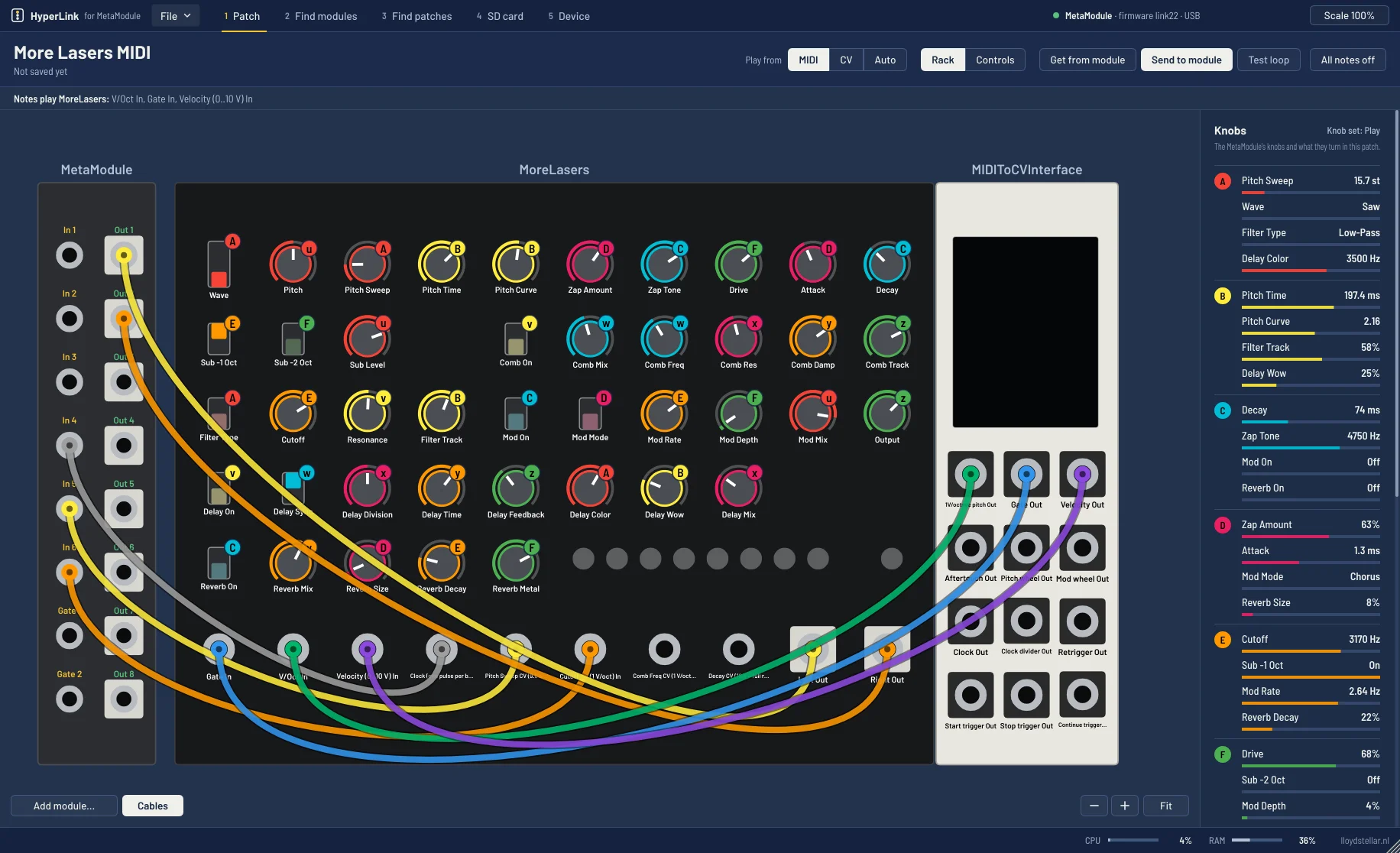
The Knobs column lists what each of the MetaModule's knobs turns in this patch, in the knob's own colour and with its value. Point at a line and the knob lights up in the rack. Right-click a knob in the rack to put it on one of the MetaModule's knobs, take it off or rename it.
Get from module takes over the patch the module is playing, with its knobs as they are now. Send to module sends the patch on your screen, and the module plays it at once. Add module puts another module in the patch, and when a patch is too big to read as a rack, Controls shows every parameter as a slider, grouped by module, with the MetaModule knob it sits on and the MIDI channel and CC HyperLink uses for it.

Playing the patch
Play from MIDI and the notes on the track go to the module through HyperLink. Play from CV and gate and pitch come from the MetaModule's own jacks: Gate In 1 and In 1, and a second voice on Gate In 2 and In 2. Auto lets HyperLink pick the inputs the notes play from their names, such as V/Oct, Gate and Velocity. A drum patch plays from keys, one key per drum. Test loop plays chords on MIDI channel 1 until you switch it off, and All notes off stops anything still sounding.
Record knob moves as automation
HyperLink has 128 automation slots. Every parameter in the patch's knob sets gets one, in knob order, named after the parameter and its module. Switch on Automation Arm in Live and turn a knob, in HyperLink or on the MetaModule itself, and Live records the move. Or draw it: open the track's automation lanes and choose HyperLink and the parameter. Turn a knob by hand while automation plays it and Live switches that automation off and lights Re-Enable Automation, as it does for any plug-in.
Live's own plug-in panel stays empty, because Live only fills it for plug-ins with up to 64 parameters. The automation lanes list them all. To put parameters in the panel anyway, click the wrench (Configure) in the plug-in's title bar and turn a knob in HyperLink, or add the line -_PluginAutoPopulateThreshold=128 to Live's Options.txt file.
HyperLink also keeps the patch in your Live set. Open the set again and HyperLink sends the patch to the module, so it sounds as it did when you saved.
Find patches that run on your module
Find patches searches the patches people share on the 4ms forum and on Patchstorage, the example patches in 4ms's firmware repository, and your own. Search titles, authors, the modules a patch uses and descriptions. Filter by kind (played from MIDI, played from CV, effects, or patches that play by themselves) and switch on Ready to play to see only the patches whose plugins are all on your SD card.
The large preview shows the rack before you play it. Play on module downloads the patch, sends it to the module and opens it in the Patch tab. Most forum patches state no licence, so ask the author before you share one further.

What the marks mean
Find patches and Find modules put the same mark next to every line.
| Mark | Meaning |
|---|---|
| Green check | It plays on your module now: built into the firmware, or its plugin is on the SD card. |
| Yellow arrow | Its plugin is not on the card yet, but HyperLink can install it from the plugin store. |
| Grey line | Not known: the module is not connected, or its plugin is not in the plugin store. |
Find modules and install their plugins
Find modules lists every module the MetaModule can run: the ones in its firmware, the ones in 4ms's plugin bundle and those in the extra plugins of the plugin store. Search by name, brand, tag or description, or click a tag to browse. The preview shows the module's panel next to the MetaModule's own.

Play as instrument builds a new patch around the module: notes from MIDI play it, its audio goes to Out 1 and 2, and its first twelve knobs go on the MetaModule's knobs. Use as effect does the same with audio from In 1 and 2 going through the module. With a patch open, Add to your patch puts the module in the patch you are working on.
When a module or a patch needs a plugin that is not on your card, the ready line names the plugin and its size, with an Install button next to it. Click it and the plugin goes over USB to the user-plugins folder on the SD card, so it is still there after a restart. Plugins larger than 15 MB go over in parts and take a little longer.
The SD card, without taking it out
The SD card tab is a file manager for the card in the module. Copy patches and plugins to and from your computer, or drop files from your computer onto the list. Drag files onto a folder to move them, rename with F2 and remove with Delete. Double-click a patch to open it in HyperLink. Remove a plugin and HyperLink warns you first, because patches that use it no longer load.
Save as puts a patch on the module's SD card or in My patches on your computer, the folder Documents/HyperLink/Patches. Patches there show up in Find patches too.

The Device tab and firmware over USB
The Device tab shows what is connected, one line each for USB, MIDI, the console, the Developer Drive, patch over USB and the HyperLink firmware. Each line has a green check, or a red cross with what to do about it. Test note plays middle C on the module, and two lights blink when MIDI goes to the module and comes back.

The footer of every tab shows the module's CPU load and memory. A bar turns yellow at 80 %: the patch is close to what the module can play without crackles. And once the module runs the HyperLink firmware, Install firmware puts new versions on the card over USB, so you only need a card reader the first time.
What you need
- A 4ms MetaModule with its SD card in.
- A USB-C data cable. Some USB cables only charge; those do not work.
- Windows 10 or 11 (64-bit), 64-bit Linux on Intel or AMD with glibc 2.35 or later, or macOS 11 or later on Apple Silicon or Intel (an untested beta, see below).
- A DAW that loads VST3 plug-ins, or on Linux also LV2. HyperLink is made and tested with Ableton Live 12, and the manual uses Live.
- An audio interface to hear the module.
- Once, for the first firmware install: an SD card reader.
The HyperLink firmware
HyperLink needs its own firmware on the module: 4ms's MetaModule firmware 2.4.1 with a USB extension added. Everything else on the module works as before, and your patches, plugins and settings stay. You can go back to 4ms's own firmware at any time. With 4ms's firmware HyperLink still shows and plays patches, but the SD card tab, installing plugins and the ready marks need the HyperLink firmware.
On its first start the firmware switches on what the plug-in needs, once: Developer Mode, USB Mode Auto and Device Mode MIDI. Developer Mode adds a small USB drive for patches and plugins and uses 16 MB of plugin memory. Your computer shows that drive as DEV_MM. Leave it as it is and do not eject it while you work. The settings live in Settings > Prefs, section USB, and if you change them later, the firmware leaves your choice alone.
How to install it
1. The firmware, the first time through the SD card
Copy everything on your SD card to a folder on your computer first. The update does not touch your patches or plugins, but a copy takes a minute.
- Download the HyperLink firmware and unzip it. You get a folder named metamodule-firmware with main.uimg and metamodule.json in it.
- Switch the MetaModule off, then take out its SD card. Never take the card out while the module is on.
- Copy the metamodule-firmware folder to the top level of the card. If the card has a folder with that name already, replace it.
- Eject the card, put it back in the module and switch the module on.
- In the main menu, choose Settings and open the Update tab. It says Update found on SD card, version 2.4.1. Choose Update Firmware and confirm.
- The module says Writing to Flash. DO NOT POWER DOWN. Leave it alone for a few minutes.
- When it says Success! Firmware has been updated, switch the module off and on. If it then says HyperLink: developer mode on, USB set for the plugin. Restart the module., switch it off and on once more.
To check, open Settings and the Info tab. The firmware version ends in link and a number, for example v2.4.1-link22. Later versions go onto the card over USB from the Device tab: click Install firmware, pick metamodule.json in the new folder, and run Update Firmware on the module as above.
2. The plug-in on Windows
- Close Ableton Live and unzip the Windows download.
- Copy the folder HyperLink.vst3 to C:\Program Files\Common Files\VST3. It is a folder: copy the whole folder, not a file from inside it. Click Continue when Windows asks for permission.
- Start Live, open Settings (Ctrl+,), go to Plug-Ins and turn on Use VST3 Plug-In System Folders. If HyperLink does not show up, click Rescan on the same page.
On Windows a MIDI port can be open in one program at a time. If the Device tab says the MetaModule's MIDI port is in use, open Live's Settings > Link, Tempo & MIDI and switch Track and Remote off for the MetaModule's input and output. HyperLink sends the MIDI to the module itself. Windows may also warn about the download, because HyperLink is not signed with a paid certificate: choose to keep the file.
2. The plug-in on macOS (beta)
The macOS version is built and checked automatically, but nobody has tried it with a MetaModule yet. If you have a Mac, please open an issue on GitHub and say how it works, with your macOS version and what the Device tab shows.
- Close Ableton Live and unzip the macOS download. The folder holds HyperLink.vst3, install.command and README.txt.
- Open Terminal (Applications > Utilities > Terminal). Type bash and a space, drag install.command into the Terminal window and press Return. HyperLink is not signed by a registered Apple developer, so macOS blocks it until the script has run. The script copies it to ~/Library/Audio/Plug-Ins/VST3 and lifts the block.
- Start Live, open Settings (Cmd+,), go to Plug-Ins and turn on Use VST3 Plug-In System Folders. Click Rescan if HyperLink does not show up.
Copied the plug-in there yourself? Then run this in Terminal afterwards:
xattr -dr com.apple.quarantine ~/Library/Audio/Plug-Ins/VST3/HyperLink.vst3
2. The plug-in on Linux
- Close your DAW.
- Unpack the Linux download, open a terminal in that folder and type bash install.sh. It copies the plug-in to ~/.vst3 and the LV2 version to ~/.lv2. The first time it asks for your password: it adds a rule that lets you use the MetaModule's USB port.
- Start your DAW and let it scan for new plug-ins.
3. Connect and play
- Connect the MetaModule's USB-C port to your computer with the data cable.
- In Live, make a MIDI track and drag HyperLink onto it. You find it in the browser under Plug-Ins, Lloyd Stellar.
- The top bar shows a green dot and MetaModule · firmware link22 · USB (or a later number). Open the Device tab and check that every line has a green check.
- Open Find patches, type drum in the search field, pick a patch with a green check and click Play on module.
- Play notes on the MIDI track, or just listen if the patch plays by itself. Drag a knob in the rack and the module follows.
One HyperLink per Live set controls the module, because the MetaModule plays one patch at a time. A second one in the same set says HyperLink is already in this set and does nothing. Remove one and the other takes over.
Not made by 4ms
The MetaModule is made by 4ms Company. HyperLink is an independent project of mine: 4ms did not make it and does not support it, so please do not ask them for help with it. Questions and problem reports go to the issues of the plug-in on GitHub.
HyperLink is free and open source under the GNU AGPL 3.0, and built with JUCE. The HyperLink firmware is 4ms's MetaModule firmware with the HyperLink extension, under the GNU GPL 3.0. The source code of both is on GitHub: hyperlink-for-metamodule for the plug-in and hyperlink-firmware for the firmware.
Questions
Is HyperLink free?
Yes. The plug-in and the firmware are free downloads, and both are open source. There is no trial and no paid version.
Does the sound of the module go through HyperLink?
No. HyperLink sends MIDI, patches and plugins over USB. To hear and record the module, patch the MetaModule's outputs into your audio interface, as you do now.
Do I need the HyperLink firmware?
For everything HyperLink does, yes. With 4ms's own firmware 2.4.1 or later it still shows and plays patches, but the SD card tab, installing plugins and the ready marks only work with the HyperLink firmware.
Do I lose my patches when I install the firmware?
No. Your patches, plugins and settings stay. Copy the SD card to your computer first anyway: it takes a minute and saves a lot if something goes wrong.
Can I go back to 4ms's own firmware?
Yes, at any time and the same way: download the MetaModule firmware from 4ms (github.com/4ms/metamodule/releases), copy its metamodule-firmware folder onto the card, and run Settings > Update > Update Firmware on the module. Your patches, plugins and settings stay. Developer Mode stays on until you switch it off in Settings > Prefs.
Which DAW does HyperLink work in?
A DAW that loads VST3 plug-ins, and on Linux also an LV2 host. HyperLink is made and tested with Ableton Live 12, and the manual uses Live.
Does HyperLink run on a Mac?
There is a macOS version for macOS 11 or later on Apple Silicon and Intel, but it is an untested beta: it is built and checked automatically, and nobody has tried it with a MetaModule yet. If you have a Mac, please report on GitHub how it works, with your macOS version and what the Device tab shows.
Why is the plug-in panel in Live empty?
Live only fills that panel for plug-ins with up to 64 parameters, and HyperLink has 128 automation slots. The automation lanes list them all. To fill the panel anyway, click the wrench in the plug-in's title bar and turn a knob in HyperLink, or add the line -_PluginAutoPopulateThreshold=128 to Live's Options.txt file.
The Device tab says the MIDI port is in use. What now?
On Windows a MIDI port can be open in one program at a time. Open Live's Settings > Link, Tempo & MIDI and switch Track and Remote off for the MetaModule's input and output. HyperLink sends the MIDI to the module itself.
Where can I get help?
In the issues of the plug-in on GitHub. Please do not ask 4ms: they did not make HyperLink and do not support it.
Made by an electro producer
I make electro as Lloyd Stellar, in a home studio in Hilversum with drum machines, synths and Eurorack. You can hear the music on Bandcamp, and the story behind the studio is on the About Me page. My other free downloads for your DAW, such as the laser synth More Lasers and Lloyd's Robot Vocal, are on Lloyd's Plugins.