Lloyd's App2Live: Send Sounds from Your Apps Straight into Ableton Live
Lloyd's App2Live (LA2L for short) is a free Max for Live device for Ableton Live. Make a beat, a loop or a sample in an app on your phone or in your browser, press its Send to Live button, and click Import in Live. Every sound lands on its own new audio track: named, coloured, and warped to the tempo the app made it in. No exporting, no downloads folder, no dragging files around.
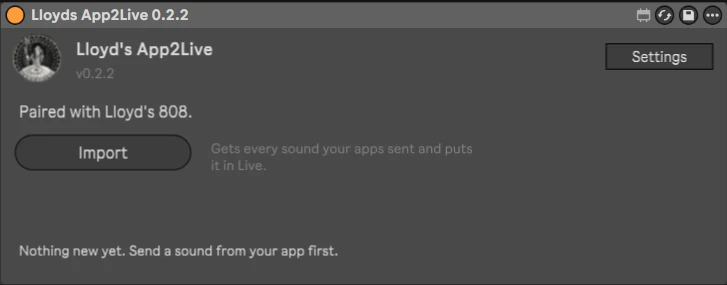
Download Lloyd's App2Live 0.2.2
The zip holds one file: the device, Lloyds App2Live 0.2.2.amxd. Nothing else to install.
Ableton Live 12.4 or newer with Max for Live: Live Suite, or Live Standard with the Max for Live add-on · Windows and Mac
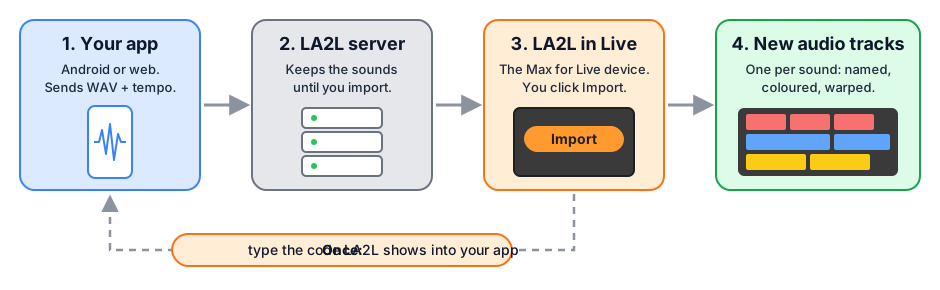
How it works
-
Your app sends its sounds
WAV files, plus a short note per sound: its name, its tempo, and whether it is a loop or a one-shot.
-
The LA2L server keeps them for you
Until you are ready, for up to 24 hours. So you can make a beat on your phone on the train and import it once you are back in the studio.
-
You click Import in Live
Nothing reaches your Set before that click.
-
Every sound becomes a new audio track
Loops are warped to the tempo of the app. One-shots play exactly as the app made them.
You pair an app only once, with a code the device shows. After that, the app can send to your computer whenever you like.
Install
- Download the zip and unzip it. Inside is one file, Lloyds App2Live 0.2.2.amxd.
- Put that file somewhere it can stay. Your User Library is a good place, for example User Library / Presets / Audio Effects / Max Audio Effect. Live's browser then shows it under User Library.
- Drag Lloyds App2Live onto an audio track. The sound of the track passes through it unchanged.
- To check that it works, click Settings, then Test import. A test loop appears on a new track, no app needed.
A group track, a return track or the Main track works too. On a group track new tracks go to the top of that group; on a return track or the Main track they go after all other tracks. When you install a newer version, restart Live: it keeps a loaded device in memory.
Use it
-
Pair your app, once
Click Pair app. The device shows a six-character code. Type that code in your app; it works for 10 minutes. Is the app in a browser on the same computer? Click Copy code and paste it. When the app has the code, the device says Paired with and the name of the app. You do this once for every app.
-
Send a sound from your app
Make something in the app and send it. The app's own button or menu says how, usually Send to Live. On the online TR-808 you make a beat and click Send to Live under Export Individual Tracks. The first time, it asks for the code from step 1.
-
Click Import
The device gets everything your apps sent and puts every sound on a new audio track. The status line at the bottom of the device says what happened.


What Import does
| What | How LA2L handles it |
|---|---|
| Where | In the Arrangement the clips start at 1.1.1, wherever the playhead is. In the Session every package gets its own new scene at the top. Pick one in Settings. |
| Track names | The name of the sound with the app after it, such as Bass Drum (Lloyd's 808). |
| Loops | Warped to the tempo of the app and looped. The warp mode fits the sound: Beats for drums, Tones for bass, Complex Pro for melodies and vocals. |
| One-shots | Play exactly as the app made them: no warp, no loop. |
| Tempo | Did the app use another tempo than your Set? A button such as Use 92 BPM appears. LA2L never changes the tempo of your Set by itself. |
| Files | Saved with your Set, in its project folder under Samples/LA2L, so Collect All and Save works as usual. Sounds imported into a Set you have not saved yet wait in Documents/Lloyds App2Live/Inbox. |
Apps that can send to Live
LA2L is new, so the list is short for now.
- Lloyd's Online TR-808 Drum Machine: a drum machine in your browser. Send to Live puts every drum on its own track as a loop of four bars, warped to the tempo of your beat. The quickest way to hear LA2L work.
- LA2L Sender: a web page that pairs like an app and sends WAV, mp3 or m4a files from your browser or phone. On Android, installed from Chrome, it also shows up in the share menu of other apps.
- Web808: a small example drum machine that sends a loop and each sound as a one-shot.
No app at hand? Settings, Test import puts a test loop in your Set.
Settings

| Setting | What it does |
|---|---|
| New sounds go to | Arrangement or Session. |
| New tracks go | After this track (the track the device is on) or At the end. |
| Test import | Places a test loop, to check that LA2L works in your Live. |
| Self test | Checks the connection with the server and the paired apps. |
| Open folder | Opens Documents/Lloyds App2Live: the settings, the log and the Inbox. |
| Add app | Pairs one more app with this computer. |
| Unpair | Disconnects all apps from this computer. Click it twice to be sure. |
LA2L keeps its settings per computer, in Documents/Lloyds App2Live/settings.json, not in your Set. So the settings and the pairing stay the same in every Set you open.
Your sounds and your privacy
Your sounds pass through the LA2L server on lloydstellar.nl only to reach your Live. They are deleted right after you import them, or after 24 hours if you never do. No account, no cookies, no advertising. Unpair in Settings disconnects your apps at any time. Everything the server keeps, and for how long, is in the LA2L privacy statement.
Ableton and Live are trademarks of Ableton AG. LA2L is not made or endorsed by Ableton.
Frequently asked questions
Is Lloyd's App2Live free?
Yes. The device is a free download and open source under the Apache License 2.0. There is no account, no trial and no paid version.
Which version of Ableton Live do I need?
Ableton Live 12.4 or newer with Max for Live: Live Suite, or Live Standard with the Max for Live add-on. It works on Windows and Mac.
Which apps can send to it?
Any app with an LA2L button or menu. Right now that is the online TR-808 on this site, LA2L Sender (a web page that sends WAV, mp3 or m4a files from your browser or phone) and Web808, a small example drum machine. Settings, Test import places a test loop without any app.
Does it change my Live Set by itself?
No. Nothing reaches Live until you click Import, and Import only adds new tracks. It never changes the tempo of your Set: when an app used another tempo, a button such as Use 92 BPM appears and you decide.
Do I need an internet connection?
Yes. The sounds travel from the app to Live through the LA2L server at lloydstellar.nl, so the app and the computer with Live both need internet. They do not have to be on the same network.
What happens to my sounds on the server?
They wait there only until you click Import, and are deleted right after, or after 24 hours if you never import them. The LA2L privacy statement has the details.
How do I stop an app from sending to my computer?
Click Settings, then Unpair, and click it a second time to confirm. That disconnects all apps from this computer. Pair an app again with a new code whenever you like.
Something does not work. What should I do?
Click Settings, then Self test: it checks the connection with the server and the paired apps. Open folder shows la2l.log, which says what the device did. Send that file through the contact form with a few words about what you tried.
More free tools, and the music they are for
Lloyd's App2Live is one of the free music tools on this site. If you work in Ableton Live, also have a look at Lloyd's Sample Maker, a Max for Live device that turns a jam into a sample pack. What I make with all of this is electro: my releases are on Bandcamp, and the story behind the studio is on the About Me page.
For developers
Want a Send to Live button in your own app? LA2L is open source and needs no API key and no developer account: the user pairs your app with the code the device shows, and that code is the consent. Everything is in the repository and on the developer pages.
- The repository on GitHubgithub.com/lloydstellar/Lloyds-app2live: the device, the server and the developer kit, under the Apache License 2.0.
- LA2L developer pagesWhere to start: pairing, sending, the package description and the limits.
- @lloydstellar/la2l on npmFor web apps: the client, Web Audio to WAV, and a ready-made Send to Live button that works without a build step.
- The Android SDKnl.lloydstellar:la2l-ktx for Kotlin and nl.lloydstellar:la2l for Java, with two example apps.
- The REST API (OpenAPI)Five HTTPS calls, for any other language or a script.
- The test receiverStands in for LA2L in Live and says per sound what Live would do. Test without Ableton.
- The skill for AI coding toolsLets a coding assistant add a Send to Live button the way LA2L expects.
- Run your own serverla2l-server in one Docker container, behind a web server that does HTTPS.
The online TR-808 is the first app with an LA2L button, and its code is a short working example: js/la2l-send.js wires up the button, and the 808 manual shows what the user sees.